
A Simpler Way to Track What’s Actually Working
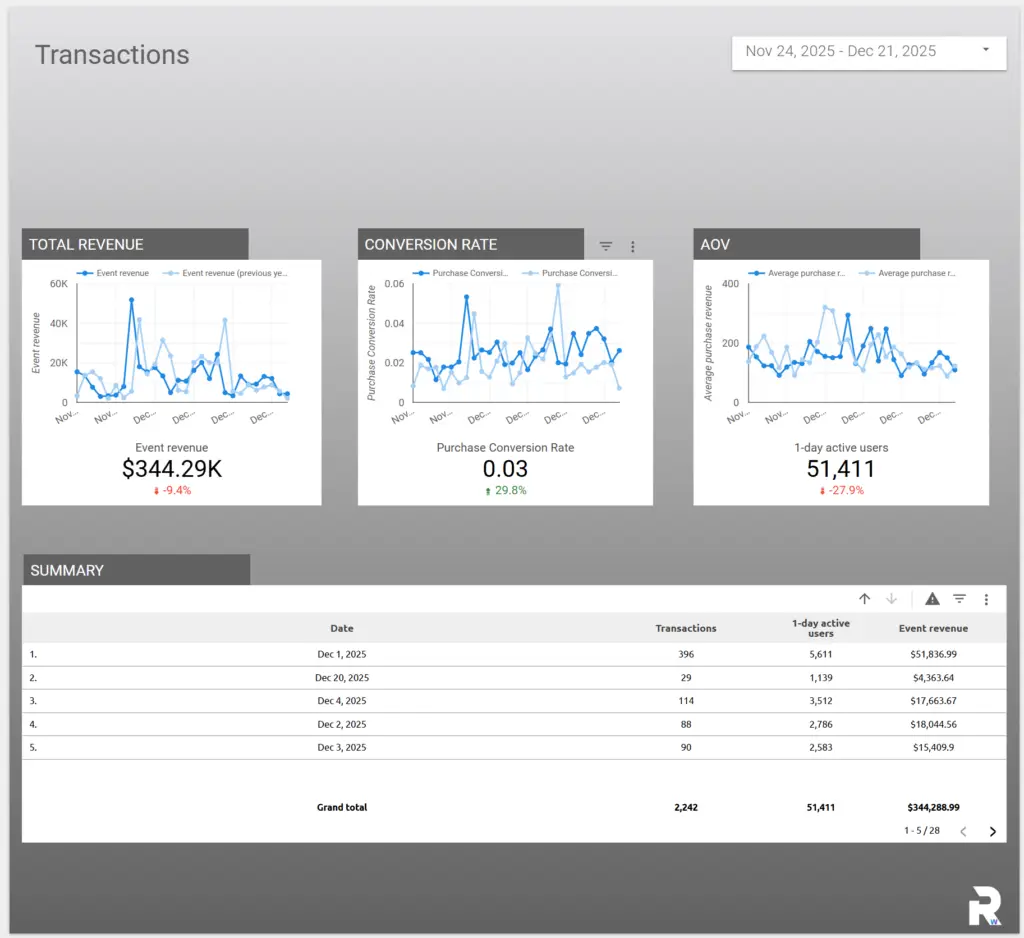
Looker Studio for SEO reporting, now back to being called Google Data Studio again as of April 2026, gives businesses a much cleaner way to track performance without constantly digging through spreadsheets. Instead of jumping between platforms and exporting reports every month, you can pull everything into one dashboard that updates automatically.
For most small businesses, that matters more than people realise. Reporting often becomes a time drain. Numbers get copied into decks, screenshots get passed around internally, and eventually nobody feels fully confident about which figures are correct. A decent dashboard cuts through a lot of that.
Google Looker Studio, previously known as Google Data Studio before the name changed and then changed back again, is a free reporting platform that lets you build live dashboards using data from tools like GA4, Search Console, Google Ads, Google Sheets, and third-party connectors.
Once it is connected properly, the report updates itself. No manual exports. No monthly copy-and-paste routine. Just a shared view of performance that people can actually use.
Summary
This guide covers:
- How to use Looker Studio for SEO reporting without overcomplicating things
- Which metrics actually matter when reviewing SEO performance
- How to combine GA4 and Search Console data into one practical dashboard
- Why most SEO dashboards become too noisy to be useful
- How to structure reports around decisions instead of charts
- Ways to separate brand and non-brand traffic properly
- How to make reports easier for clients and teams to understand
- Common reporting mistakes that quietly waste time
- How to share dashboards safely without creating version chaos
The goal is not to build the fanciest report possible.
It is to build something people genuinely check and use.
What Is Looker Studio?
Looker Studio is one of the more useful SEO tools for turning raw data into something readable. At its core, it is a data visualisation platform that lets you build dashboards and reports using live data from multiple sources.
Google describes it as a no-cost reporting tool for custom dashboards and reports. In practice, it works as a central place to view the numbers that normally sit across several platforms.
Instead of opening GA4, then Search Console, then Ads, then a spreadsheet, you can build one report that brings the important information together.
That could include:
- Organic clicks by landing page
- Leads from SEO traffic
- Revenue by channel
- Search queries gaining traction
- Local visibility trends
- Paid spend beside conversion data
The charts themselves are not really the point.
What matters is speed and clarity.
You want to open a report, spend five minutes reviewing what changed, and know where attention is needed.
That is usually where Looker Studio works well for SEO.
Search performance moves gradually. If you only review it every few months, patterns get missed completely. If you obsess over it daily, you end up reacting to noise.
A solid dashboard gives you a sensible middle ground.
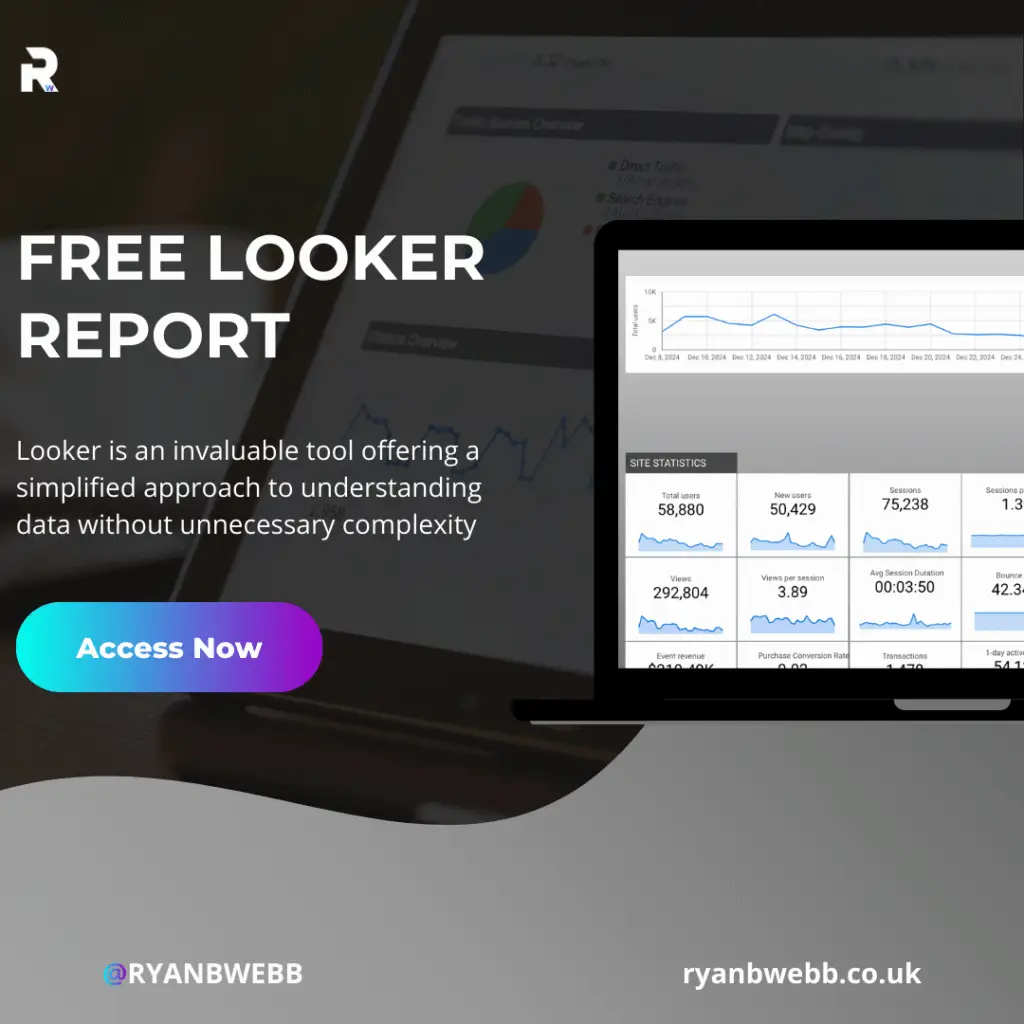
Download my free Google Looker Dashboard!
Why Looker Studio Works Well for SEO Reporting
SEO rarely produces instant, obvious results. Most improvements happen gradually.
A page gains impressions quietly.
A service page starts converting better after a rewrite.
One topic cluster slowly builds authority over six months.
Without context, those changes are easy to overlook.
A dashboard helps you spot movement earlier while there is still time to act.
It keeps attention on the numbers that matter
One of the biggest reporting problems is clutter.
A lot of SEO reports throw every available metric onto the page because technically they can. Sessions. Users. Bounce rate. Scroll depth. Engagement time. Exit rate. Returning users.
After a while, none of it means anything.
A good SEO dashboard should narrow attention towards the metrics that actually influence decisions.
Usually that means:
- Organic clicks and impressions
- Brand vs non-brand traffic
- Landing pages driving leads or sales
- Converting pages
- Pages losing visibility
- Query growth over time
You are trying to spot direction, not admire charts.
It makes Search Console easier to work with
Search Console is excellent once you understand it properly, but it is not always quick to review.
Filtering multiple pages, comparing date ranges, checking devices, splitting brand and non-brand queries. It can become fiddly fast.
Looker Studio simplifies a lot of that by showing the views you check repeatedly in one place.
No digging around every time.
It improves reporting conversations
This is the part people often underestimate.
Dashboards help businesses have better conversations around SEO because everyone is looking at the same information.
You can explain:
- What improved
- What dropped
- What changed
- What needs attention next
without constantly arguing about outdated screenshots or mismatched exports.
That alone saves a surprising amount of time.
What You Should Track First
If this is your first SEO dashboard, keep it small.
Most people try to build everything immediately and end up with a report nobody wants to open.
A strong starter dashboard only needs to answer a few practical questions:
- Are we gaining visibility?
- Are organic clicks increasing?
- Which pages drive results?
- Which queries are growing?
- Are organic visitors turning into leads or sales?
That is enough to guide useful monthly SEO work.
Organic visibility and clicks
Search Console impressions tell you how often your pages appear.
Clicks show whether users actually choose your result.
If impressions rise but clicks stay flat, something is usually off.
Maybe:
- Titles are weak
- Meta descriptions feel generic
- The page does not match search intent properly
- Competitors have stronger SERP visibility
- Google is testing different layouts
That sort of pattern becomes very obvious inside a dashboard.
Top Tip
“Separate brand and non-brand traffic as early as possible”
Brand traffic can hide both SEO problems and SEO improvements. Once you split the data properly, priorities usually become much clearer.
Landing pages usually matter more than total traffic
This gets missed constantly.
A website can gain thousands of extra visits through blog content while core service pages stay completely flat.
Traffic growth sounds impressive until you realise none of it converts.
That is why landing page reporting tends to be far more useful than staring at total sessions.
You want to know:
- Which pages drive enquiries
- Which pages quietly lose visibility
- Which content attracts the wrong audience
- Which pages deserve more internal links or optimisation
Once you view SEO through landing pages instead of vanity metrics, reporting becomes much more useful.
Conversions and events
GA4 only measures what you configure.
If enquiries matter, they need proper tracking.
That could include:
- Form submissions
- Click-to-call actions
- Booking requests
- Quote requests
- Email clicks
- Purchases
Mark the meaningful actions as conversions.
Otherwise, your dashboard may show traffic growth while hiding the fact that business performance stayed exactly the same.
Also worth mentioning. Bounce rate in GA4 works differently compared to Universal Analytics.
Google now defines bounce rate as the opposite of engagement rate.
So if you still include bounce rate in reports, make sure people understand the context behind it rather than treating it like a universal quality score.
Choosing the Right Data Sources and Connectors
Looker Studio connects to a huge range of platforms.
That sounds great initially.
Then people connect everything at once and create an absolute mess.
Most SEO dashboards do not need twenty different sources.
For many small businesses, the essentials are enough.
Core data sources for SEO reporting
A practical setup usually includes:
- Google Search Console for clicks, impressions, queries, and average position
- GA4 for sessions, users, landing pages, and conversions
- Google Business Profile data for local SEO visibility
- Google Sheets for offline notes, lead quality scoring, or manual tracking
That alone can provide a very strong reporting setup.
Third-party connectors
Looker Studio also supports partner connectors through the connector gallery.
These connectors help pull in data from platforms like:
- HubSpot
- Shopify
- LinkedIn Ads
- Meta Ads
- CRM platforms
- Ecommerce systems
Some are free.
Many are subscription-based.
And honestly, this is where people can waste money quickly.
Paid connectors only make sense when they answer a reporting problem you genuinely have.
Top Tip
“If a connector costs money, define the decision it helps you make before buying it. If you cannot explain the decision clearly, you probably do not need the connector yet.”
Plan the Dashboard Before You Build Anything
A dashboard works best when it matches how people actually use information.
That sounds obvious, but loads of reports are built backwards.
People start dragging charts onto a page without deciding:
- Who the report is for
- How often it gets reviewed
- Which decisions it should support
- Which questions people ask most often
That is usually where dashboards become cluttered.
Decide who the report is really for
Different people need different levels of detail.
A business owner often wants:
- A simple summary
- Clear trends
- Leads and sales visibility
- A quick understanding of what changed
A marketing manager may want:
- Channel breakdowns
- Content performance
- Conversion trends
- Campaign segmentation
Clients often want reassurance and clarity more than technical detail.
Trying to satisfy everyone with one overloaded page rarely works.
Match the reporting cadence properly
If reporting happens monthly, build around monthly comparisons.
If teams review weekly, include weekly trend views.
Also, seasonality matters more than people think.
Month-on-month comparisons can become misleading very quickly for seasonal businesses.
Year-on-year views usually provide much better context.
Build separate pages instead of one giant report
This alone improves usability massively.
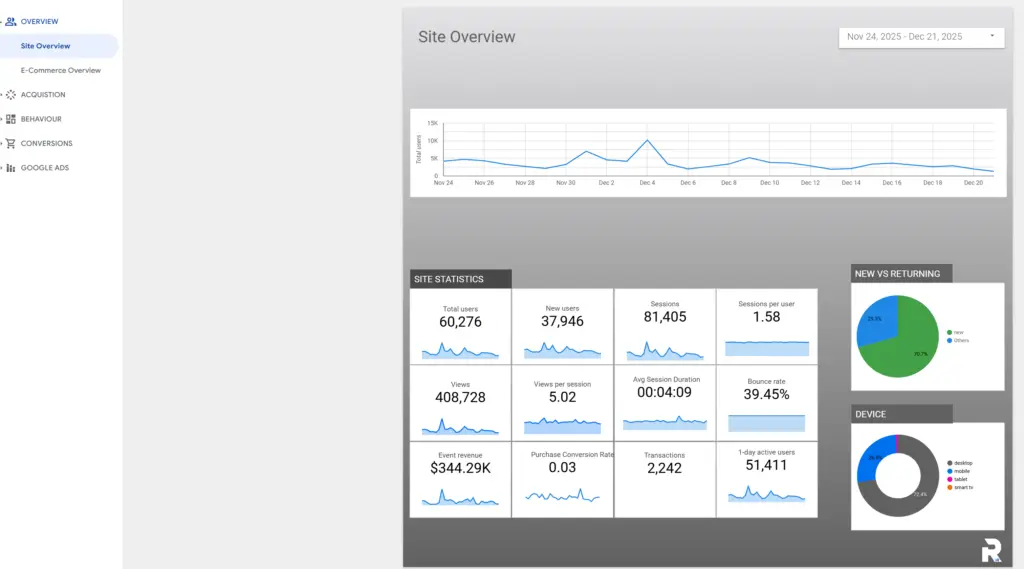
Useful SEO dashboards normally separate sections into pages like:
- Overview
- Organic performance
- Search Console queries
- Landing pages
- Conversions and leads
- Technical reporting
That structure feels cleaner.
People can scan quickly and drill deeper when needed.
Personally, I still like having a simple overview page first. Something close to the old Universal Analytics summary style.
A quick snapshot of the last 28 days often tells you enough to know where to investigate further.
Building a Simple GA4 SEO Dashboard
You do not need a complicated setup to get value from Looker Studio.
Start simple.
Get the basics working.
Then expand gradually.
Step 1: Create the report and connect GA4
Create a new report and connect your GA4 property.
Name everything properly from the beginning.
That sounds boring, but once multiple properties exist, messy naming becomes a headache surprisingly fast.
Step 2: Add a simple KPI row
Start with scorecards showing:
- Users
- Sessions
- Organic sessions
- Organic conversions
- Revenue from organic traffic if ecommerce applies
Add a date selector at the top so comparisons become easy.
Simple wins here.
Step 3: Add landing page reporting
Landing page reporting is often the most useful SEO section in the entire dashboard.
Include:
- Landing page
- Sessions
- Users
- Conversions
- Conversion rate
Then filter the table to organic traffic.
This one view often tells you more than ten different charts combined.
Step 4: Add trend charts
A basic time-series chart for:
- Organic sessions
- Organic conversions
is usually enough.
You are looking for directional movement.
Not daily volatility.
Step 5: Make the report reusable
Templates save a huge amount of time.
Especially if you manage several sites.
Once one dashboard structure works well, you can duplicate it and reconnect the data source for new projects.
If other people will use the template, add a short setup page explaining:
- Which connectors need reconnecting
- Which filters to check
- Which conversions should exist
- Which views rely on Search Console access
Small details like that prevent confusion later.
Top Tip
“Your first dashboard does not need to impress people. It just needs to answer useful questions quickly. That is what gets dashboards used consistently.”
Why Search Console Still Matters So Much
GA4 explains what users do after arriving on the site.
Search Console explains how they arrived in the first place.
You need both.
What Search Console data helps you understand
Search Console reporting helps uncover:
- Queries driving traffic
- Queries earning impressions but low clicks
- Pages gaining visibility
- CTR trends over time
- Average ranking movement
It is also the easiest place to split brand and non-brand traffic properly.
That distinction matters more than many reports acknowledge.
Brand growth often reflects business growth.
Non-brand growth usually reflects actual SEO progress.
Useful Search Console views
A clean Search Console page inside Looker Studio might include:
- A clicks and impressions trend chart
- Top query reporting
- Top landing pages by visibility
- CTR and average position trends
- Device or country filters if relevant
Keep CTR visible.
Just avoid obsessing over it.
CTR changes constantly based on:
- SERP layouts
- Brand awareness
- Featured snippets
- AI overviews
- Competitor changes
- Search intent
Without context, CTR becomes easy to misread.
Turning Dashboard Data Into Real SEO Actions
Dashboards are not the work.
They are the clue board.
The value comes from spotting patterns early and acting on them.
Pattern: Impressions increase but clicks stay flat
This usually means pages are becoming more visible without convincing users to click.
Possible fixes include:
- Improving title tags
- Tightening meta descriptions
- Matching search intent more clearly
- Adding FAQ content
- Clarifying page positioning
Sometimes pages rank for the wrong queries entirely.
That happens more often than people think.
Pattern: Blog traffic grows but enquiries do not
Classic SEO problem.
A blog post gets visibility.
Traffic climbs.
Nothing commercially useful happens afterwards.
Usually the issue is weak internal linking or unclear next steps.
Adding:
- Better internal links
- Relevant service CTAs
- Helpful next-step sections
- Clearer conversion paths
often improves things significantly.
And no, that does not mean turning every blog into an aggressive sales page.
Readers can feel that immediately.
Pattern: Rankings improve but conversion rates stay poor
This is normally a page quality issue rather than a traffic issue.
Look at:
- Mobile usability
- Trust signals
- Contact friction
- Pricing clarity
- Page speed
- Service explanations
- Reviews and proof
Looker Studio helps surface these weak spots quickly.
The actual improvement still happens on the page itself.
Making Dashboards Easier to Share
One of the strongest parts of Looker Studio is how easy it becomes to share live reporting.
Instead of exporting PDFs every month, people can simply open the report and see updated data.
That changes reporting behaviour quite a bit.
Teams rely less on screenshots.
Conversations become faster.
There is less confusion around which version is correct.
Still, sharing can become messy if permissions and ownership are not managed properly.
Use sensible access permissions
View-only access should usually be the default for clients and stakeholders.
It protects:
- Filters
- Charts
- Layouts
- Calculated fields
- Data source settings
Too many editors almost always leads to dashboard drift.
Someone adds a chart.
Someone changes a filter.
Someone duplicates a page.
Eventually nobody trusts the report anymore.
A simple rule helps:
- People who need answers get view access
- People maintaining the report get edit access
That keeps things much cleaner.
Build reports around actual usage
Different people care about different things.
A business owner may only review:
- The summary page
- Landing page performance
- Leads from SEO
A marketing team may need campaign or channel breakdowns.
That is why layered reporting works well.
Start with a short summary page.
Then allow deeper exploration underneath.
Avoid ownership problems later
This catches businesses out constantly.
If a report is connected through a personal employee account and that person leaves, dashboards can break.
Suddenly:
- Connectors fail
- Permissions disappear
- Reports stop updating
- Nobody knows where credentials live
The fix is simple.
Use shared admin ownership where possible.
At minimum, document:
- Connector ownership
- Login locations
- GA4 property access
- Sheet permissions
- Third-party connector subscriptions
Not glamorous work.
Very useful later.
Use a simple version control process
Looker Studio makes editing extremely easy.
Which is both useful and dangerous.
A practical workflow helps:
- Keep one master dashboard
- Duplicate before major edits
- Date-label versions clearly
- Replace live reports only after testing
That avoids a lot of confusion.
Especially with client reporting.
Add context when numbers change suddenly
Charts without context create panic.
If traffic spikes or drops sharply, explain why.
Useful annotations might include:
- Site migrations
- Tracking changes
- Cookie banner updates
- Campaign launches
- PR coverage
- Service changes
- Consent mode changes
A simple notes section inside the dashboard works well.
Otherwise people invent their own explanations.
And those explanations are usually wrong.
Keep the report easy to understand
Small usability details make a huge difference.
Use:
- Clear page names
- Consistent filters
- Simple helper text
- Obvious labels
A surprising number of reporting problems are really just communication problems.
Common Looker Studio Mistakes That Waste Time
Most dashboard problems are not technical.
They come from poor planning.
Too many metrics everywhere
This is the most common issue by far.
If every metric appears on screen simultaneously, nothing stands out.
The dashboard becomes background noise.
Strong reports tend to feel slightly opinionated.
They guide attention.
They prioritise.
They help people focus.
Usually the top-level page only needs a handful of KPIs.
Deeper pages can handle the detail.
No clear metric definitions
Trust disappears quickly when definitions become inconsistent.
For example:
- “Leads” includes spam submissions
- Organic traffic accidentally includes paid clicks
- Conversion events fire twice
- Different platforms count things differently
You do not need a giant glossary.
A short definitions section is enough.
Clarify:
- What counts as a lead
- Which channels are included
- Which conversions are tracked
- Known tracking limitations
That transparency matters.
Nobody checks the underlying data quality
Looker Studio displays whatever data it receives.
Even if the tracking is broken.
That is the dangerous part.
A dashboard can look polished while telling the completely wrong story.
Quick weekly checks help:
- Do sessions look normal seasonally?
- Do leads roughly match reality?
- Did any major pages suddenly drop to zero?
- Are Search Console connections still active?
This is also where annotations become useful.
If tracking changes caused a sudden shift, explain it immediately.
Google Looker Studio FAQs
1) Is Looker Studio free?
Yes. Google describes Looker Studio as a no-cost reporting platform, and the free version covers most small business SEO reporting needs comfortably.
Some third-party connectors cost money, particularly for ad platforms or CRM integrations, but many businesses can build strong reports using GA4, Search Console, and Google Sheets alone.
2) What is the best Looker Studio dashboard setup for SEO?
The best dashboard is the one people actually use consistently.
A strong structure normally includes:
- Overview page
- Search Console query reporting
- Landing page reporting
- Conversion tracking
- Local SEO sections if relevant
Keep the layout readable and easy to scan quickly.
That matters more than visual complexity.
3) Can you combine GA4 and Search Console data?
Yes.
Looker Studio connects directly to both platforms.
Most businesses start by displaying them side by side rather than trying to blend every metric together immediately.
That approach is simpler and still gives most of the practical reporting value.
4) Why do Looker Studio numbers sometimes differ from GA4?
Small differences are fairly common.
Usually this comes down to:
- Attribution settings
- Sampling
- Time zones
- Filters
- Metric definitions
- Reporting delays
Consistency matters more than obsessing over tiny variances.
If the differences become large, review the underlying tracking setup.
5) Do SEO dashboards need paid connectors?
Not always.
Many SEO reporting setups work perfectly well using free Google connectors.
Paid connectors become useful once reporting depends heavily on:
- CRM systems
- Ecommerce platforms
- Advertising platforms
- Multi-channel attribution
Before paying for connectors, be clear about what business question they help answer.
How All This Ties Together
Looker Studio is one of the easiest ways to turn scattered SEO data into something practical.
When the dashboard is built around real questions instead of vanity metrics, reporting becomes much more useful.
You spend less time exporting numbers and more time improving the pages that actually drive enquiries, sales, and visibility.
Start small.
Build gradually.
Begin with:
- An overview page
- Landing page reporting
- Search Console visibility tracking
- Clear conversion reporting
Then improve the dashboard over time as your reporting needs become more mature.
Trying to build the perfect reporting system on day one usually creates more confusion than clarity.
A clean, useful dashboard that gets checked regularly is far more valuable than a huge report nobody understands.
If you want help improving visibility and attracting more local customers through SEO, get in touch to build a reporting setup and strategy tailored to your business.