
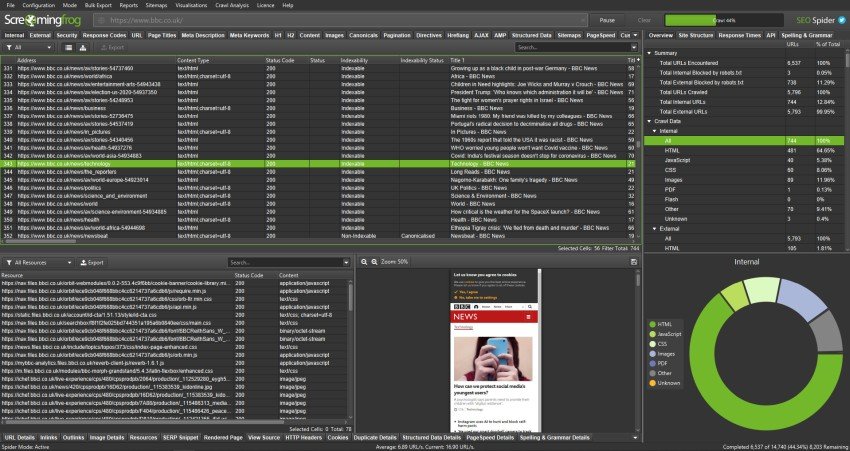
If you have ever hit “Start” in Screaming Frog on a big site and watched your laptop start to wheeze, you are not alone. Large websites behave differently. A crawl that takes five minutes on a brochure site can take hours, or days, on an e-commerce platform, a publisher, or a marketplace.
The problem is rarely Screaming Frog itself. It is the setup. The default settings are fine for smaller crawls, but big crawls need a bit more thought. You need to decide what you are trying to learn, how much load the site can take, and how you will keep the crawl stable from start to finish.
This guide is written for people running their own SEO audits. It is educational on purpose, with the kind of detail you only pick up after many messy crawls. You will learn how to plan a large crawl, configure Screaming Frog so it does not fall over, and get outputs you can actually use.
Screaming Frog offers a free download, which is handy for getting familiar with the tool, but large website crawls need the paid licence because the free version is capped at 500 URLs
Summary
Crawling large websites with Screaming Frog works best when you plan the crawl, control the scope, and keep the tool stable.
Start by switching to Database Storage Mode so the crawl data saves to disk, not RAM. Set memory allocation sensibly, and use a thread count that the server can handle without errors or rate limiting. Tighten the crawl with include and exclude rules so you avoid URL traps from parameters, filters, internal search, and tracking tags.
If the site is very large, break the crawl into sections, by folder, sitemap, or a priority URL list. That makes the outputs easier to analyse and turns findings into fixes faster. Finally, group issues by template and focus on indexable URLs first, so your audit leads to clear actions rather than a huge spreadsheet you never use.
Why crawling still matters on large sites
A large site can hide problems in plain sight. Templates drift, plugins get updated, teams ship changes fast, and old sections get forgotten. You can have thousands of pages that are “fine” on their own, but the whole site still underperforms because of how everything connects.
A crawl gives you a map. Not a perfect one, but a solid model of how search engines and users can move through the site.
Here is what a crawl helps you spot quickly.
Broken links and dead ends
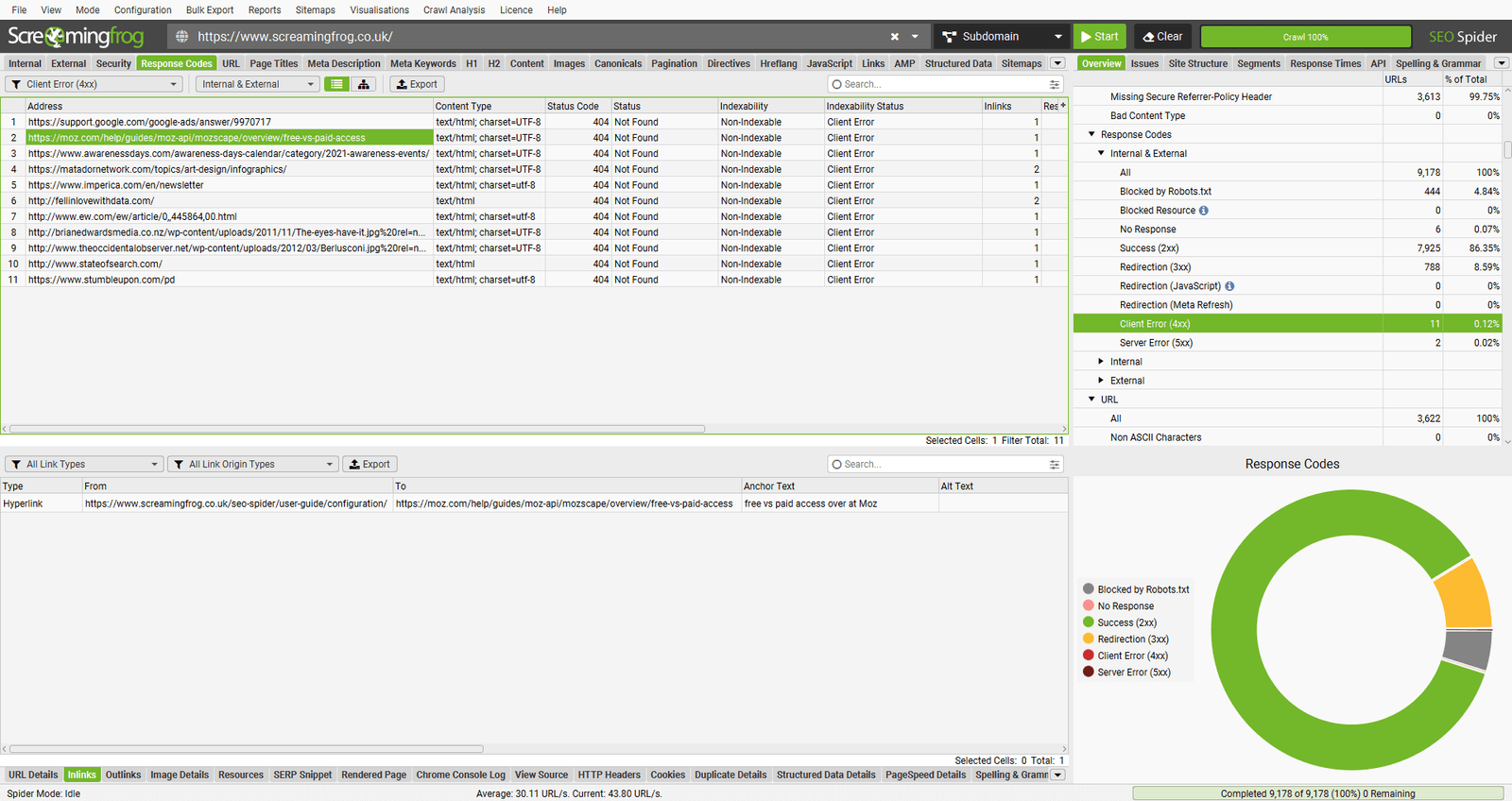
Internal 404s waste crawl budget and frustrate users. External 404s are also worth fixing, especially when they sit on key pages. On large sites, broken links often appear due to product removals, expired campaigns, or old navigation modules.
When you fix broken internal links, you also protect internal link equity. Important pages stay supported, instead of bleeding value through dead ends.
Redirect chains and loops
Redirects are normal on mature sites. The issue is when they stack. A chain can slow page loads, and it can make it harder for search engines to settle on the final URL. A loop is worse; it is a hard stop.
A crawl highlights chains, loops, and the pages that trigger them. That makes it easier to fix at the source, not just patch the last hop.
Duplicate and near-duplicate pages
Large sites often produce duplicates by accident. Common causes include faceted navigation, tracking parameters, internal search, sort orders, printer views, and content that gets copied across locations.
Even if the pages are not “bad,” too many similar pages can make it harder for the right pages to rank. Crawling helps you quantify the scale and isolate patterns.
Metadata gaps at scale
On big sites, metadata tends to become uneven. You might have:
- missing titles on one template
- duplicated titles on paginated pages
- descriptions that truncate across whole categories
- inconsistent indexation signals
Crawling is the fastest way to see this across the whole set, then group issues by template or directory so fixes are practical.
Indexation and directive problems
A crawl will show you where noindex is used, where canonicals point, how robots directives behave, and where pages are blocked. On large sites, a single rule change can affect tens of thousands of URLs, so it is worth checking often.
Speed signals and heavy pages
Screaming Frog is not a full performance lab, but you can still surface clues, like
- pages with very large HTML
- slow server response times during the crawl
- repeated redirects that drag things out
On enterprise sites, these patterns usually sit in templates, not one-off pages.
Crawling also becomes non-negotiable during migrations, redesigns, and platform changes. You need a record of what exists today so you can check what survives tomorrow.
Before you crawl, define what “done” looks like
Large crawls fail most often because the scope is unclear. If you are crawling millions of URLs, you need a clear reason for the effort. Otherwise you end up with a giant file, then no time to use it.
Start with these three decisions.
1) What is the audit goal?
Pick the primary goal first, then secondary ones. Examples:
- technical issues that affect indexation
- internal linking and depth
- template metadata issues
- redirect and canonical clean-up
- duplicate content patterns
- migration benchmarking
Your goal decides what you need to collect. That matters because every extra thing you ask Screaming Frog to fetch costs time and resources.
2) What is the crawl boundary?
Large sites often have areas you do not want:
- internal search results
- account pages
- endless filter combinations
- staging or legacy subdomains
- image and file paths you do not need
Write down what should be included and excluded. You will use this list when you set your include and exclude rules.
3) How will you split the crawl if it gets too big?
If you suspect the site is huge, assume you will not crawl it in one pass. Plan your segmentation early, so you can compare outputs later.
Common segmentation approaches:
- by subfolder, such as
/blog/,/category/,/product/ - by subdomain
- by sitemap
- by a defined URL list for key sections
Top Tip
“This is key if you want to be able to work on fixing the issues sooner rather than later; there have been crawls I have conducted that have taken days to complete. I find breaking them down into bite-size chunks and crawling different subfolders separately is a far easier and more manageable task”.
A quick reality check on scale
Before you press Start, get a rough feel for size. You do not need an exact number, just enough to choose the right approach.
Ways to estimate scale:
- look at XML sitemaps and index files
- check how many URLs appear in key folders
- use Search Console coverage and sitemap reports if you have access
- crawl a single directory first as a test run
The main point is simple. If the site can produce near-infinite URLs through parameters and filters, you must control the crawl tightly.
Core Screaming Frog setup for large crawls
Switch to Database Storage Mode
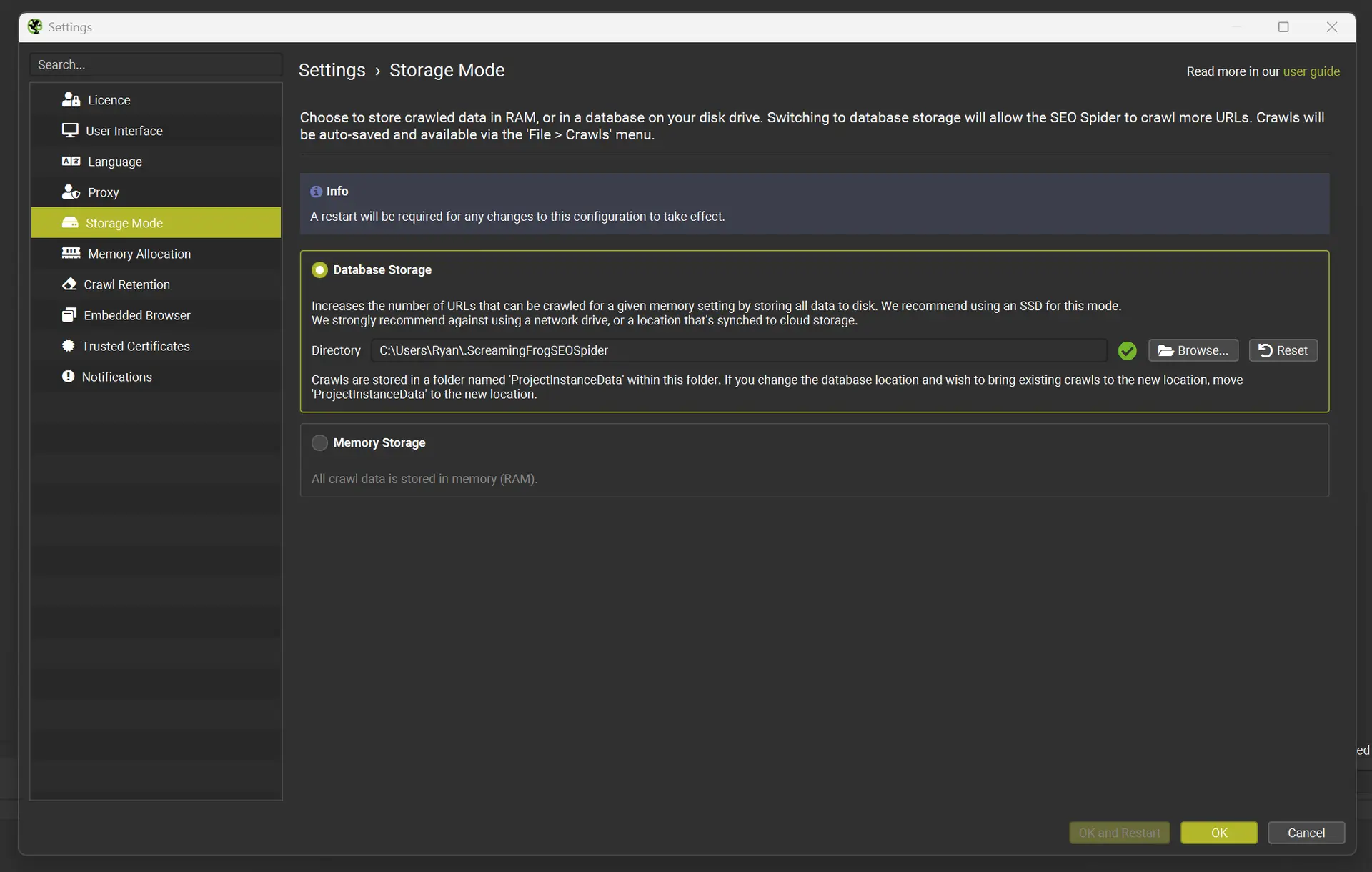
For large sites, the single biggest stability improvement is saving crawl data to disk rather than holding it all in RAM. Screaming Frog calls this Database Storage Mode. It is set in the app settings, and it is designed for crawling at scale.
If you have an SSD, use it. Disk speed makes a real difference when the crawl gets big.
Practical notes:
- make sure you have plenty of free space
- close heavy apps while crawling
- keep your project files organised, large crawls can create large data sets
Set Memory Allocation sensibly
Even in database mode, memory still matters. Screaming Frog has guidance on memory allocation and rough crawl capacity. As a general pointer, increasing allocation supports larger crawls, but you should leave enough RAM for your operating system to run smoothly.
A safe mindset is “stable over fast.” A crawl that finishes cleanly beats a faster crawl that crashes at 70 percent.
Choose a crawl speed that the server can handle
Threads control how many URLs Screaming Frog processes at once. More threads can speed things up, but they also increase load. The right number depends on the site’s hosting, caching, and how the application behaves under pressure.
If you control the site, you can test more freely. If you are auditing a client site, stay conservative and communicate with the dev team if you can.
A practical approach:
- start low, then increase slowly
- watch response times and error spikes
- if you see a lot of 429, 503, or timeouts, slow down
The goal is a crawl that stays steady for hours, not one that sprints for ten minutes and then gets blocked.
Top Tip
“Add the site’s required cookie to avoid server errors
Some websites return server errors to crawlers unless a specific cookie is present. This can happen with certain WAF setups, load balancers, bot protection, logged-in areas, language or region routing, or setups that expect a session cookie even for public pages.”
How to avoid crawling millions of useless URLs
Large sites often look “bigger” than they really are because of URL variation. You can end up crawling:
- tracking parameters
- session IDs
- filter combinations
- sort orders
- pagination traps
- calendar pages that generate endless URLs
If you crawl those, the audit becomes noisy and slow. More importantly, you can miss the real problems because the dataset is bloated.
Use Exclude rules early
Build a shortlist of patterns you nearly always exclude, then tailor it to the site. Examples include:
utm_parameters- internal search paths
- sort and filter parameters
- tag pages, if they are not part of the strategy
Use Screaming Frog’s exclude feature and test your patterns before the crawl runs.
Use Include rules for controlled audits
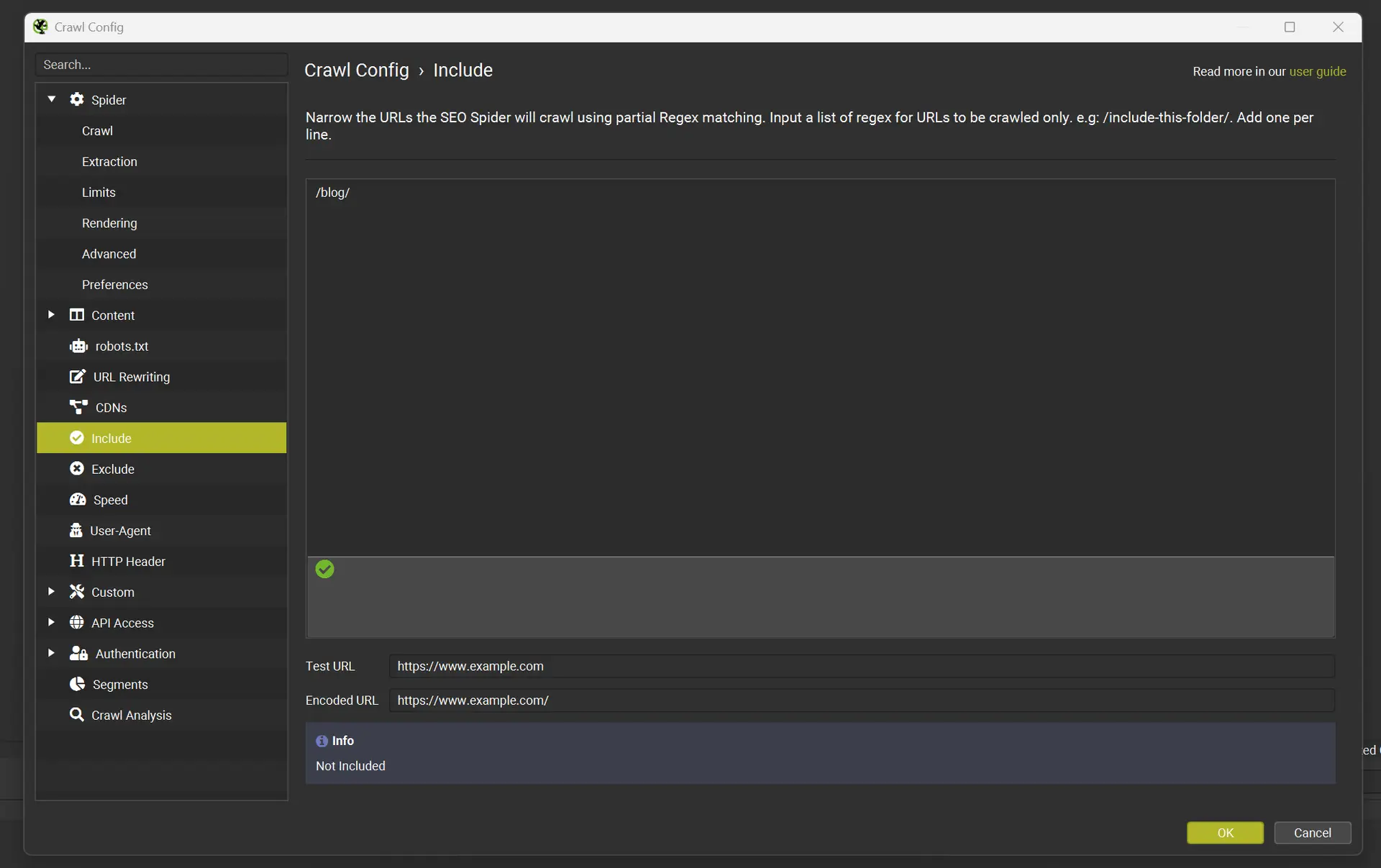
On very large sites, include rules can be safer than exclude rules. Instead of trying to block every messy parameter, you define the patterns you do want.
Examples:
- only crawl
/blog/for a content audit - only crawl
/product/for e-commerce templates - only crawl URLs that match a product code pattern
This is also useful when you are auditing in phases.
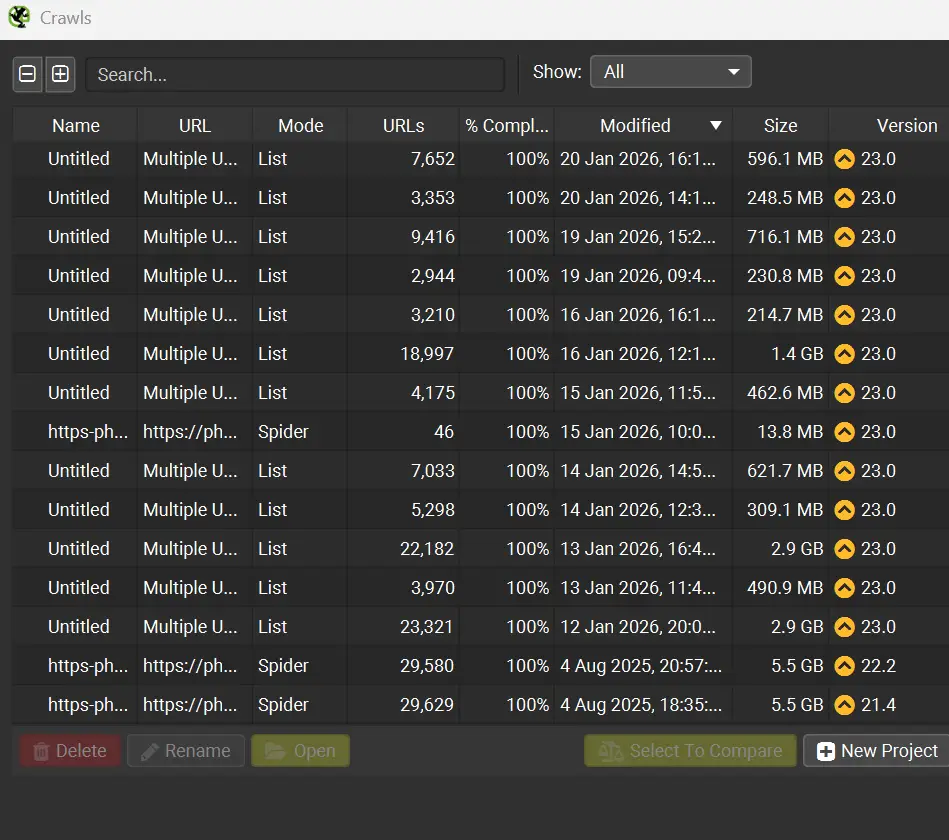
As you can see from the screenshot below, full site audits can soon become large data files, so breaking them down into more mangable chunks, is kinder on your storage, and easier to assess, post crawl.
Decide how you want to treat parameters
Parameters are not automatically “bad”. Some sites use them for tracking only, and some use them for real content. Your job is to decide which types matter for search.
If parameters create crawl traps, you will normally:
- block them in the crawl to keep the dataset clean
- then audit parameter behaviour separately using samples
Break large websites into manageable chunks
Even with good storage and memory settings, crawling everything at once can be a poor use of time. Chunking your crawl makes analysis easier and lets you fix issues section by section.
Crawl by directory
This is the simplest method. You crawl /blog/ first, then /category/, then /product/, and so on. The benefit is that your output aligns with how the site is organised, which makes it easier to brief fixes.
Crawl by sitemap
If the site has clean XML sitemaps, you can crawl them as a defined list. This is useful when:
- the site navigation does not link to everything
- you want to focus on indexable URLs
- you want to compare “what the business thinks exists” against what the crawler discovers
Crawl by priority URL list
For quicker audits, build a list of:
- top landing pages
- top categories
- top converting products
- key informational pages
You can then crawl those plus their internal links to a chosen depth. This approach is also useful when time is limited.
If you want to crawl a handful of URLs only, then create a list of specific URLs, inside a notepad document and change the crawl mode from Spider to List, this enables you to crawl, only the specific list of URLs, you have decided upon.
Top Tip
“Do a short crawl before the full run. Pick a folder that is representative of the site, then crawl it with your planned settings.
What you are checking:
does the site respond well at your thread rate?
do your exclude rules work as expected?
do you see parameter traps creeping in?
do you get blocked after a few minutes?
do the outputs give you what you need?
A pilot crawl saves hours later. It also gives you confidence that the full crawl will finish cleanly.”
Handling JavaScript and rendering on large sites
JavaScript rendering can change your crawl size and crawl time massively. Some sites only load key content after scripts run, while others render most content in HTML already.
If you render everything on a very large site, you can turn a manageable crawl into an expensive one.
A practical way to handle this:
- start with a standard crawl, no rendering, to map the basics
- then run a smaller, targeted rendered crawl on templates you suspect rely on JavaScript
Pages that often rely on JavaScript:
- product listings and filters
- single page app navigation
- content behind tabs and accordions
- client-side injected canonicals or metadata
Look for mismatches between what you see in the browser and what the crawler finds without rendering.
Make your crawl outputs easier to use
A large crawl is only useful if you can turn it into actions. The trick is to organise findings so they map to fixes.
Group issues by template and directory
Instead of listing 40,000 missing titles, identify:
- which template produces them
- which section is affected
- what a “correct” example looks like
This makes it easier to brief a developer or content team. It also helps you estimate effort.
Focus on indexable URLs first
When you are dealing with huge sets, always split analysis between:
- indexable URLs
- non-indexable URLs
You often find that the most important fixes sit in indexation signals, canonicals, and internal linking to the right set of pages.
Save the crawl cleanly and label it
Large crawls are hard to repeat exactly. Save your crawl files and name them in a way you can understand later, such as:
site-main-2026-02-17-dbmodeblog-folder-2026-02-17products-sitemap-2026-02-17
This becomes useful when you want to compare changes after fixes.
Top Tip
“When you crawl at scale, you will see errors. The question is what they mean.
Common patterns:
429 suggests rate limiting. Slow down.
503 can point to server strain, or maintenance, or an unstable application layer.
timeouts can happen when pages are heavy, or the server is overloaded.
spikes in 5xx can reveal weak areas in the platform, such as search, filters, or certain templates.
If errors cluster around a directory or template, that is a finding. It may indicate performance or stability issues that affect both users and crawlers.”
Cleaning up internal links and crawl depth on large sites
Internal linking is one of the hardest things to audit at scale, but a crawl can still give you strong signals.
Look for important pages with weak internal support
Signs include:
- low internal inlinks
- deep crawl depth
- orphaned pages that only appear in sitemaps
- key pages that sit behind parameters or scripts
Spot navigation and pagination issues
Large e-commerce and publisher sites often have pagination systems that create:
- thin pages
- duplicate pages with minor variation
- crawl traps through sort orders
A crawl helps you see how the site is presenting these URLs, and which ones the internal links push hardest.
Find pages that “collect” internal link equity
Some pages become internal hubs by accident, such as:
- tag pages
- old category pages still linked sitewide
- campaign landing pages that never got removed
These can pull attention away from the pages you actually want to rank.
Common large-site crawl problems and how to handle them
The crawl never finishes
Usually caused by one of these:
- URL traps from parameters
- calendar pages and infinite paths
- internal search pages linked from templates
- too many threads causing instability
Fix by tightening include and exclude rules, reducing crawl speed, and segmenting by directory.
Your machine slows to a crawl
Most often:
- you are crawling in memory mode
- memory allocation is too high for your system
- your disk is near full
- too many other applications are running
Move to database storage mode, free disk space, and keep the machine clear during long crawls.
You get blocked
Rate limiting and WAF rules can kick in quickly on aggressive crawls. If you see a lot of 403 or 429, slow down and consider:
- crawling outside peak times
- using a more conservative thread limit
- speaking with the hosting or dev team if it is your own site
Too much data, no clear conclusions
This happens when the crawl is set to collect everything, then analysis is unfocused.
Fix by:
- prioritising indexable URLs
- grouping issues by template
- using segmentation, not one huge crawl
- creating an action list that maps to owners, dev or content
Read my article on how you can enhance your SEO Efforts with Screaming Frog
Frequently Asked Questions About Crawling Large Websites With Screaming Frog
How many URLs can Screaming Frog crawl on a large website?
Capacity depends on your machine, storage mode, memory allocation, and the site itself. Disk-based storage is designed for larger crawls, and higher memory allocation supports bigger datasets, but the site’s response times and URL structure often become the real limiting factors.
What thread count should I use for a large crawl?
Start conservative and increase slowly. A stable crawl at a lower thread count usually gives better results than an aggressive crawl that triggers rate limits or errors. Watch for spikes in response times, timeouts, and 429 or 5xx errors, then adjust down if needed.
Should I crawl parameters on an e-commerce site?
Only if you have a clear reason. Parameters often create near-infinite URL combinations, which can swamp your crawl and bury the useful findings. A cleaner approach is to exclude most parameter patterns, then sample specific parameter sets when you want to audit how filters, sorting, or tracking behave.
How do I crawl a site that relies on JavaScript for content?
Use a two-step approach. Crawl without rendering first to map structure, then run a smaller rendered crawl on key templates that rely on scripts. Rendering everything at scale can add a lot of time and strain, so keep it targeted unless you know the site needs it.
What is the fastest way to turn a huge crawl into fixes?
Segment the crawl by section, then group issues by template inside each section. This turns a long list of URLs into a short list of root causes. Root causes are what developers and content teams can fix quickly.
The Bottom Line
Crawling large websites with Screaming Frog is less about pressing Start and more about controlling the work. Storage mode, memory allocation, crawl speed, and strict URL rules are what keep big crawls stable. When those are set well, the tool becomes predictable, even on sites with hundreds of thousands of pages.
The other half is analysis. A large crawl is only helpful if you can turn it into actions. Segment by section, focus on indexable URLs, and group patterns by template. That is how you go from a heavy export to a clear, practical fix list.
If you want a second pair of eyes on your crawl setup, or you would like help turning a large crawl into an SEO audit plan you can work through, get in touch and I will share a tailored SEO strategy for your site and your resources.