
Keywords and content usually get most of the attention in SEO. That makes sense because they are the visible part. They are what people read, click, and judge.
Technical SEO is different. Most of it happens quietly in the background.
But this is the part that keeps the whole site functioning properly.
It helps search engines reach your pages, understand what they are looking at, and store the right version in their index. When the technical seo basics side is messy, even strong content can struggle. Not because the content is bad, but because Google cannot access it properly, interpret it clearly, or trust the signals it sees.
That happens more often than people realise.
A site can have genuinely useful service pages and still perform badly because the pages are slow, buried too deep, blocked accidentally, or duplicated across multiple URL versions.
The good part is this though. Most small business owners do not need to become developers to improve technical SEO.
If you can log into your CMS, follow a checklist, and understand a few core ideas, you can spot a lot of the common problems yourself. You can usually fix the simpler ones too. Then, when something more technical appears, you at least know what needs escalating.
This guide focuses on the technical SEO basics that actually matter for a normal small business website. Nothing bloated. Nothing written purely for SEO professionals.
Just the practical stuff that helps your site work properly.
If you want hands-on help after reading through it, you can also visit my Technical SEO Services page for a full audit and a practical action plan.
Summary
– Technical SEO helps search engines crawl, understand, and index your website properly
– It covers areas like speed, mobile usability, HTTPS security, redirects, canonicals, XML sitemaps, and internal linking
– A strong technical setup makes it easier for Google to discover and trust your important pages
– It also improves the user experience by making the site faster, cleaner, and easier to navigate
– Common technical SEO problems usually come from oversized images, bloated plugins, messy redirects, duplicate URLs, weak internal linking, and accidental noindex tags
– Most small business sites are dealing with collections of small technical issues rather than major technical failures
– Tools like Google Search Console, Lighthouse, PageSpeed Insights, and Screaming Frog help identify problems early
– When the technical setup is solid, your content has a much better chance of performing properly in search results
What technical SEO actually means
Technical SEO is really about accessibility.
Can search engines reach your pages?
Can they understand them properly?
Can users use the site easily once they arrive?
That is the core of it.
It covers areas like:
– how quickly pages load
– how your site works on mobile devices
– how pages are discovered through internal links and sitemaps
– which pages are blocked intentionally or accidentally
– HTTPS security
– redirects and duplicate URLs
– structured data and schema markup
A simple way to think about it is this.
Your content is the message.
Technical SEO is the delivery system.
If the delivery system is unreliable, the message struggles to get through.
A slow page creates friction. Broken mobile layouts frustrate people. Incorrect canonicals confuse Google. Poor navigation hides important pages.
None of that means the content itself is weak.
It just means the site is getting in its own way.
That is usually where technical SEO becomes valuable. Not through complicated theory, but by removing obstacles.
Understanding Crawl, Render, and Index
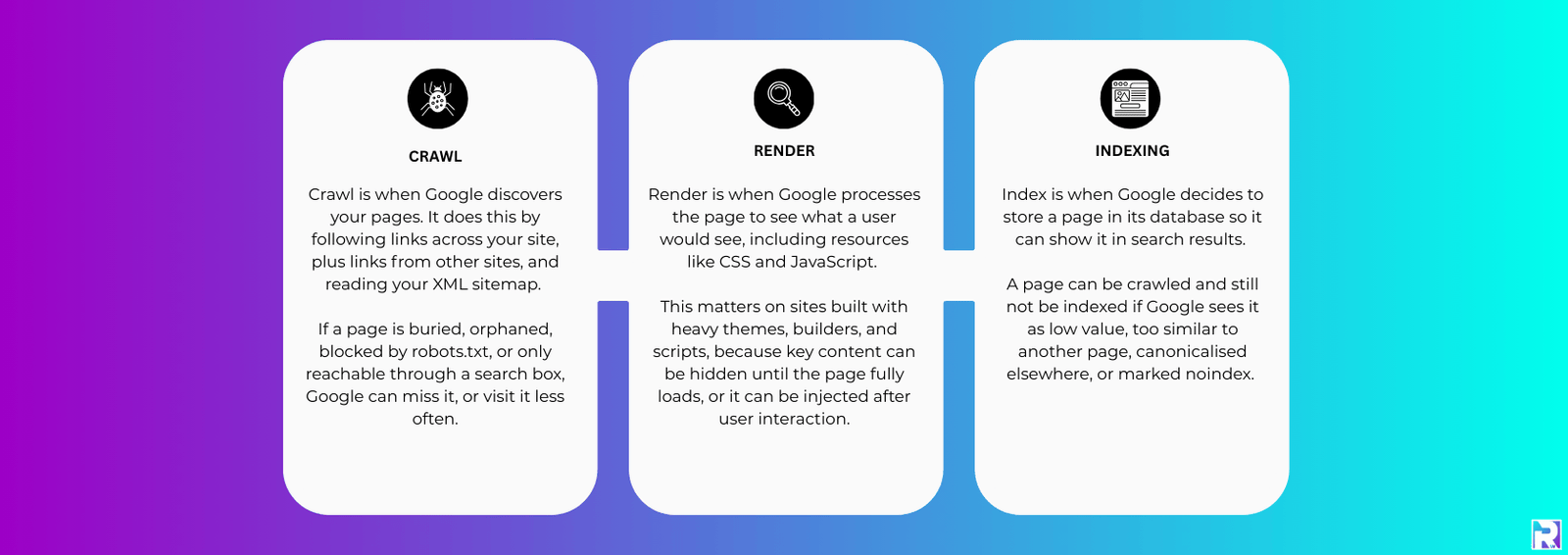
A lot of technical SEO starts making more sense once you understand how search engines process a page.
There are three main stages.
First comes crawl.
Google visits a page and follows links to discover more content.
Then comes render.
This is where Google processes the page properly, including scripts, styling, and loaded resources, so it can understand what users actually see.
Finally comes index.
This is where the page gets stored so it can appear in search results.
If something breaks during one of those stages, visibility usually suffers.
A blocked page may never get crawled.
A badly rendered page can appear incomplete.
An indexed page that loads slowly or behaves poorly on mobile can still lose visibility against cleaner competitors.
People often assume rankings are purely about keywords and backlinks.
Sometimes the issue is much simpler than that.
Google just cannot process the site cleanly.
Top Tip
“You do not need a long report on day one.”
Start with simple checks that affect real users immediately.
Open your homepage and two important service pages on your phone using mobile data, not office WiFi. Scroll through the pages properly. Tap the buttons. Read the text.
Does the site feel slow?
Do pop-ups get in the way?
Is the layout awkward?
If it feels frustrating on your phone, there is a good chance Google sees those issues too.
Then check three basics.
Your site should load securely on HTTPS.
Your key pages should be indexable.
And the overall experience should feel reasonably fast.
Those improvements alone often move the needle more than complicated technical plans that never actually get implemented.
Speed and mobile usability
For most businesses, mobile performance matters more than desktop now.
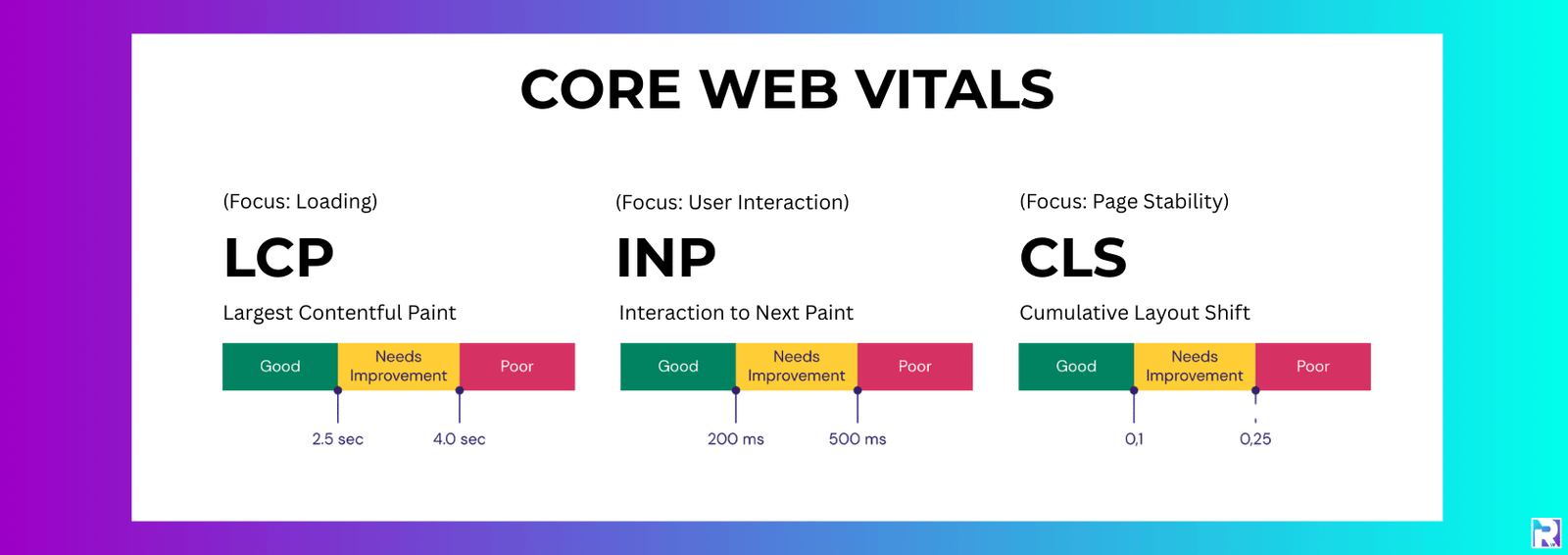
That is true for local trades, restaurants, clinics, emergency services, consultants, agencies, almost everybody.
People browse on their phones constantly.
Even B2B buyers do it between meetings.
So technical SEO is no longer just about getting pages to load eventually.
It is about making the experience feel smooth.
What Matters Now
Most slow websites are not slow for mysterious reasons.
Usually it comes down to a few repeat problems.
Oversized Images
A homepage hero image saved at 4000px wide might look impressive in the design file.
On a mobile connection though, it slows everything down.
Most small business sites simply do not need image files that large.
Too Many Plugins
WordPress sites collect plugins very easily.
One gets added for forms.
Another for pop-ups.
Another for sliders.
Then analytics.
Then backups.
Then reviews.
Each plugin can load scripts, stylesheets, database calls, and tracking requests.
Eventually the site becomes heavy without anybody noticing gradually.
Heavy Page Builders
Page builders are not automatically bad.
But some setups generate bloated code very quickly.
You often see pages built from dozens of separate widgets, each loading its own scripts and styling.
The result looks fine visually but performs badly underneath.
Weak Hosting
Hosting quality matters.
A slow server can make a decent website feel sluggish.
Cheap hosting often works fine at first. Problems usually appear later when traffic increases or resource limits become tighter.
What You Can Do Without Becoming Technical
You do not need advanced development knowledge to improve a lot of speed problems.
You can:
– compress images before uploading them
– use modern image formats where possible
– remove plugins you no longer use
– simplify fonts and font weights
– reduce unnecessary pop-ups and scripts
– review your hosting if the site feels consistently slow
A good target for many small business sites is simple.
The site should feel quick on normal mobile data.
Not just on fast office internet.
Can Search Engines Actually Access Your Site?
This is where a lot of indexing problems begin.
Businesses sometimes think Google is ignoring their pages.
Often, Google simply cannot access them properly.
XML Sitemaps
An XML sitemap gives search engines a structured list of important URLs.
It helps Google discover pages more efficiently, especially on larger sites or sites with weaker internal linking.
A sitemap should include:
– key service pages
– important blog content
– clean canonical URLs
– current live pages
It should not include:
– admin pages
– thank you pages
– internal search results
– thin archive pages
– redirected URLs
Once your sitemap is ready, submit it through Google Search Console and Bing Webmaster Tools.
That alone can make indexing issues easier to diagnose.
robots.txt
Your robots.txt file tells crawlers which areas of the site they should avoid.
Used correctly, it helps preserve crawl efficiency.
Used badly, it can accidentally block important sections of the website.
One common mistake is blocking CSS or JavaScript files.
If Google cannot load those resources properly, rendering becomes incomplete.
That can affect how the page is interpreted.
noindex and Canonical Problems
Two technical settings cause problems constantly.
noindex
A noindex tag tells Google not to include a page in search results.
That is useful for checkout pages, private pages, or staging environments.
It becomes a serious problem when it lands on important service pages accidentally.
That happens more than people expect after redesigns or plugin updates.
canonical
Canonical tags tell Google which version of a page should be treated as the main version.
They help with duplicate content.
But if the canonical points to the wrong page, Google may ignore the page you actually want ranking.
If you only run one technical check this month, check that your main service pages:
- are indexable
- return a 200 status
- canonicalise to themselves
That simple check catches a surprising number of issues.
When Google Seems To Ignore Your Site
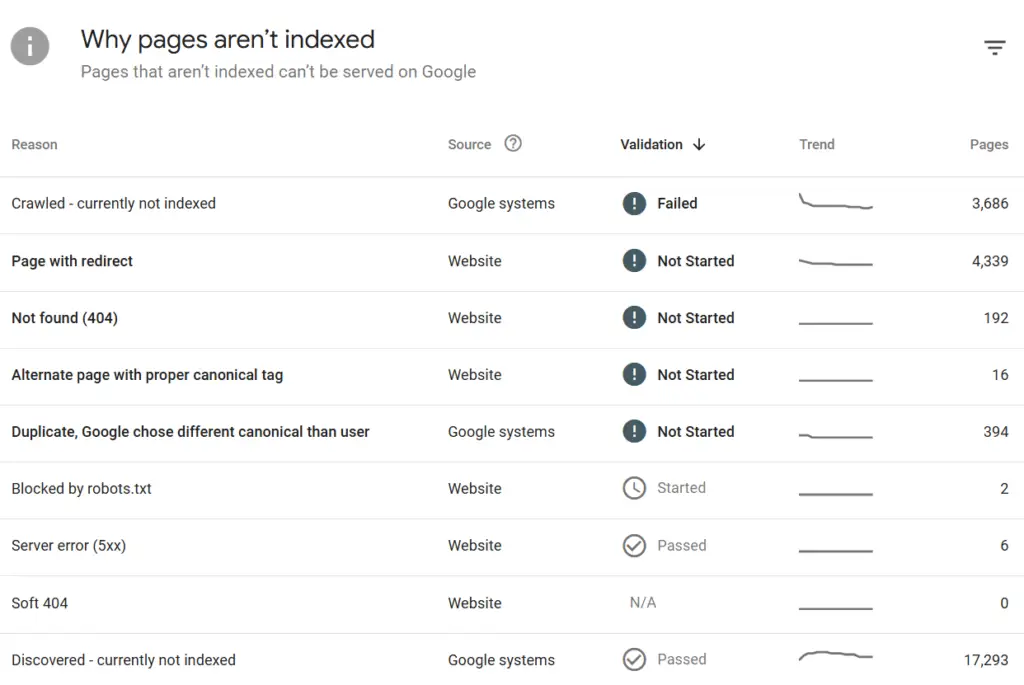
Most indexing problems are not random.
Usually there is a technical reason sitting underneath them.
One common issue is orphan pages.
These are pages with no internal links pointing towards them.
Google can still discover them sometimes through sitemaps or external links, but they become much easier to miss and often appear less important.
Another issue is near-duplicate content.
This happens a lot with location pages.
Businesses create twenty versions of essentially the same page with swapped place names.
Google often chooses one version and quietly ignores the others.
Then there is index bloat.
This is where a site accumulates large numbers of low-value pages:
– thin archives
– internal search pages
– low-quality tag pages
– duplicate filtered URLs
Too many weak pages dilute the overall site quality signals.
Cleaning that up usually helps the stronger pages stand out more clearly.
And then there are the basic technical problems.
Wrong status codes.
Broken redirects.
Redirect chains.
Server instability.
None of it is glamorous SEO work, but it matters.
Status codes and redirects
You do not need to memorise every HTTP status code.
But there are a few that matter regularly.
200
The page loads normally.
This is what your important pages should return.
301
A permanent redirect.
Use this when a page has moved permanently.
302
A temporary redirect.
Fine for short-term changes.
Not ideal for permanent URL moves.
404
The page cannot be found.
Some 404s are completely normal.
The bigger issue is internal links still pointing towards broken pages.
410
A stronger removal signal than 404.
Less common, but useful sometimes.
500 Errors
These are server-side issues.
If important pages are returning 500 errors consistently, that needs attention quickly.
Redirect Chains
Redirect chains happen when one URL redirects through multiple steps before reaching the final destination.
Something like:
Old URL → Redirect → Another Redirect → Final URL
That wastes crawl efficiency and slows users down.
It also makes reporting unnecessarily messy.
A cleaner setup is always better.
If you update URLs, point internal links directly to the final destination instead of relying on chains.
Site Structure and Internal Linking
Internal linking sits right in the middle of technical SEO and content strategy.
It helps users navigate.
It helps search engines understand which pages matter.
And honestly, most small business sites underuse it badly.
The structure does not need to be complicated.
Usually, simple works better.
Your main navigation should point clearly towards core services.
Service pages should connect naturally to related services.
Blog posts should link back towards useful commercial pages where relevant.
Not aggressively. Just naturally.
If important pages are buried too deeply, or hidden behind internal search functions, visibility becomes harder.
Clean site structure helps both SEO and conversions because users reach the information they need faster.
A solid small business structure often looks like this:
– homepage linking to core services
– service pages linking to related services
– blog content supporting commercial pages naturally
– clear navigation without overload
– important pages reachable within a few clicks
One thing worth mentioning here.
More pages do not automatically mean better SEO.
A website with eight strong service pages often performs better than a website with forty thin pages repeating similar information.
That part gets overlooked constantly.
Duplicate Content and Messy URLs
Duplicate content is usually created accidentally.
Very rarely is somebody deliberately trying to duplicate pages.
The same content can exist across:
– http and https
– www and non-www versions
– trailing slash variations
– tracking parameter URLs
– filtered URLs
If those versions are not controlled properly, search engines may treat them as separate pages.
That weakens clarity.
The solution is usually straightforward:
– choose one preferred URL version
– redirect alternative versions properly
– use accurate canonical tags
WordPress sites also create duplicates through archives and tag pages.
Some archive pages are useful.
Others add almost no value.
Thin tag archives especially tend to create clutter more than anything useful.
If a page is not genuinely helping users, it probably does not need indexing.
Structured Data Without Overdoing It
Structured data helps search engines understand the meaning behind content.
It is not a rankings shortcut.
But it can reduce ambiguity.
For many small business websites, the useful schema types are fairly simple:
– Organisation or LocalBusiness
– Service
– Product
– FAQ (as of May 2026, Google announced they are fully depricating the FAQ Schema within the search results. However I still feel inclined to include this on sites for best practice)
– Review markup where appropriate
The aim is clarity.
You are helping Google connect the business to real-world information like services, locations, reviews, and products.
One thing to avoid though.
Do not add schema just because a plugin offers twenty different options.
Incorrect schema is worse than no schema.
Top Tip
“Screaming Frog remains one of the most useful technical SEO tools”
Screaming Frog lets you crawl your site similarly to how a search engine does.
And honestly, it catches issues fast.
Once a month, run a crawl and focus on the essentials first.
Check response codes for broken pages and server errors.
Review redirect chains.
Look at indexability signals.
Check for pages accidentally marked noindex.
Review canonicals.
Then look for repeated page titles, duplicate meta descriptions, and duplicated H1s because those patterns often reveal thin or repetitive content.
This kind of monthly housekeeping keeps the site cleaner long term.
Most technical SEO disasters do not appear overnight.
Usually they build gradually because nobody notices the warning signs early enough.
Useful Technical SEO Tools Without Overcomplicating Things
You do not need a big stack of paid tools. A few basics will cover most needs.
You do not need an expensive stack of SEO software.
A few solid tools cover most technical SEO work for small business sites.
Google Search Console and Bing Webmaster Tools
These show indexing problems, crawl issues, sitemap reporting, and search visibility.
They should be part of every website setup.
PageSpeed Insights
Useful for identifying speed issues and Core Web Vitals data.
Treat the scores as guidance, not as something to obsess over.
A technically perfect score means very little if the real-world user experience still feels awkward.
Chrome Lighthouse
Lighthouse is useful for quick browser-based checks.
Especially now the older Mobile-Friendly Test has been retired.
Screaming Frog
Still one of the best tools for technical SEO.
It helps uncover:
– broken links
– redirect problems
– missing titles
– duplicate metadata
– canonical issues
– thin pages
Ahrefs Webmaster Tools
Good for backlink visibility and general health monitoring.
Also fairly beginner friendly compared to some enterprise SEO tools.
The important thing is not collecting tools endlessly.
It is using them consistently.
Run a crawl.
Fix a handful of meaningful issues.
Run another crawl.
That steady rhythm usually works better than producing giant technical reports nobody ever acts on.
FAQs about technical SEO basics
1) How do I check if Google has indexed my service pages?
Use the URL Inspection tool inside Google Search Console.
It will show:
– indexing status
– crawl information
– rendering details
– potential indexing blocks
If a page is missing from the index, check for noindex tags, canonical problems, redirects, or crawl restrictions.
2) What is the most common technical SEO issue on small business websites?
Slow pages are extremely common.
Usually caused by oversized images, bloated plugins, excessive scripts, or weak hosting.
Close behind are indexing mistakes like accidental noindex tags and messy redirects.
3) Does a small website still need an XML sitemap?
Yes. Even small websites benefit from having a clean sitemap.
It helps search engines discover important URLs and makes indexing problems easier to diagnose.
4) Should WordPress tag pages and category pages be indexed?
It depends on their usefulness.
If they act as helpful content hubs with real value, they may deserve indexing.
If they are thin archive pages with little purpose, noindex is often the cleaner option.
5) How often should technical SEO audits happen?
For most small business sites:
– light monthly checks are usually enough
– deeper quarterly audits make sense
– major redesigns should always trigger a fresh technical review
Especially after URL changes.
That is where problems often appear.
How This All Fits Together
Technical SEO is the part of SEO that stops good content disappearing into the background.
It clears the path so search engines can reach your pages, understand them properly, and trust what they find.
A website that loads quickly, works properly on mobile, uses HTTPS correctly, and keeps indexing clean gives both users and search engines a smoother experience.
That supports everything else.
Your service pages.
Your blog content.
Your enquiries.
Your visibility.
Technical SEO is not about chasing perfection.
Most small business websites do not need enterprise-level complexity.
They just need a clean, stable setup without unnecessary friction.
That alone solves a lot more problems than people expect.